Navigation Choices That Work Better on Squarespace
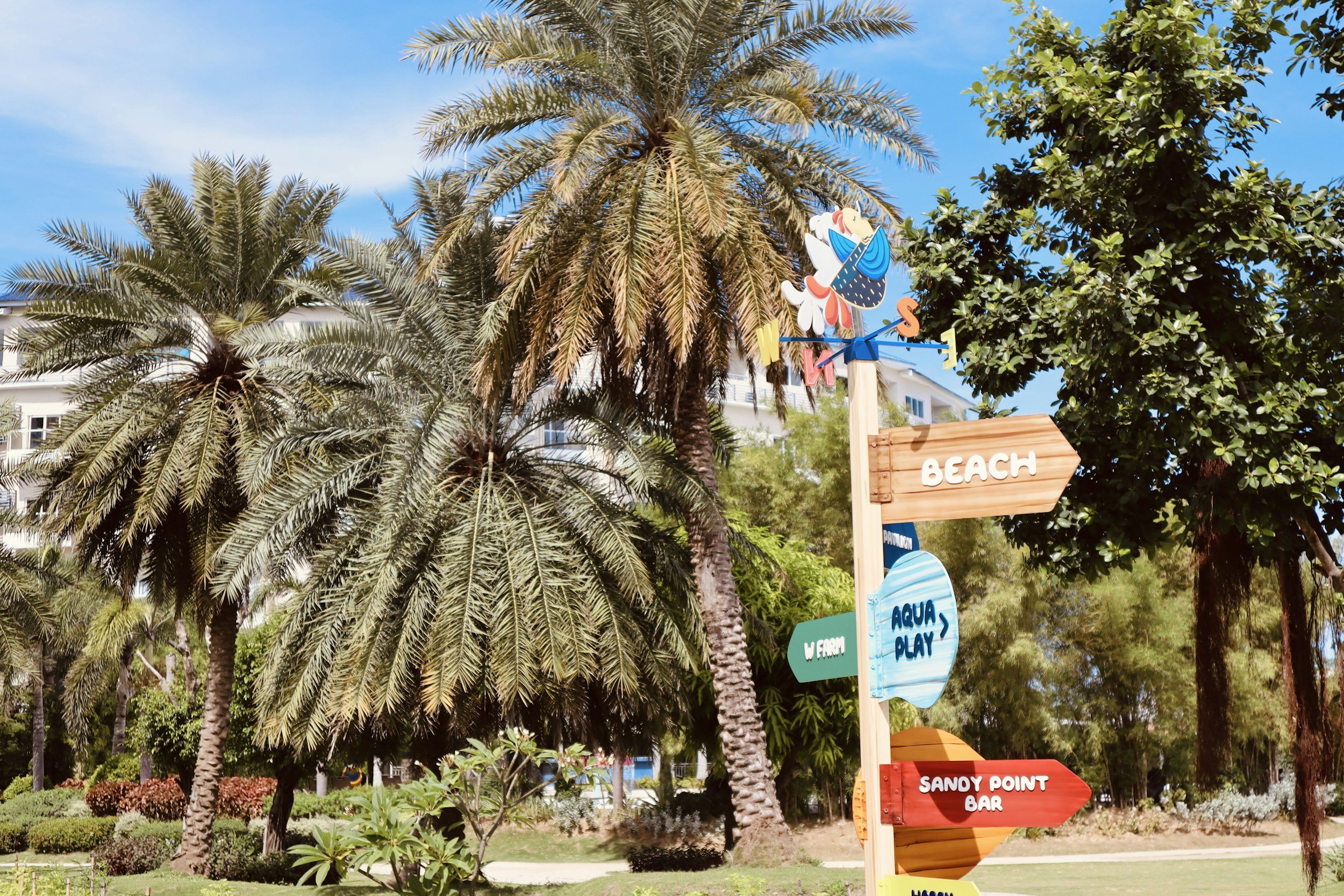
Navigation is one of those things most people don’t think about until it stops working.
Menus get longer.
Pages get added.
What once felt simple starts to feel crowded.
On Squarespace sites, navigation issues often go unnoticed. The site still functions, but visitors have to work harder to find what they need.
Why dropdown-style menus cause friction
Squarespace makes it easy to group pages into folders, which many people use to create dropdown-style navigation.
At first, this feels organized. Similar pages are tucked neatly under one label. The menu looks shorter and cleaner.
The problem is that visitors don’t always interact with menus the way site owners expect.
Dropdowns:
Require more precision, especially on mobile
Hide options until someone knows where to hover or tap
Add an extra step before people can move forward
On phones, these menus often feel awkward or slow, even when they’re technically working.
What people actually click in menus
Most visitors don’t explore menus in depth.
They scan quickly and click what feels most obvious. If they don’t immediately see what they’re looking for, they either guess or leave.
This is why broad, vague menu labels often struggle. People shouldn’t have to decode your site's navigation to use it.
Clear, direct labels tend to perform better than clever or condensed ones.
Simpler menus are easier to use and maintain
One advantage of Squarespace is how clean its layouts can be — when navigation stays simple.
Menus that work well on Squarespace usually:
Limit the number of top-level items
Use clear, descriptive page names
Avoid nesting too many pages under one label
This makes the site easier to use for visitors and easier to manage behind the scenes.
Better alternatives to dropdown-heavy navigation
Instead of packing everything into the main menu, consider:
Highlighting key pages in the top navigation
Using internal links within pages to guide visitors
Letting less critical pages live deeper in the site
This approach reduces pressure on the menu and helps visitors move naturally through the site rather than having to choose from a long list.
Why this matters for mobile visitors
Navigation decisions affect mobile users more than desktop users.
Menus take up valuable screen space. Extra taps add friction. Hidden pages are more likely to go unnoticed entirely.
For Seattle and West Seattle businesses, many visitors are browsing quickly, often on their phones. A menu that’s easy to understand at a glance makes a real difference in how long they stay.
When navigation starts feeling hard to manage
If updating your menu feels stressful, that’s a signal worth paying attention to.
It often means the site structure has grown without a clear plan. Small fixes can help, but sometimes the bigger improvement comes from stepping back and simplifying.
Navigation should support the site, not compete with it.
Something to think about
If you find yourself explaining where things are on your website, your navigation may be doing too much work.
A simpler menu won’t limit visitors. It usually helps them feel more confident about where to go next.